Level building is pretty fiddly but here are links that might make it easier:
Positioning Objects via the Unity Manual. Check out the notes on Unit and Vertex snapping.
Align Positions via the Unity Manual. An example script from Unity.
Snap to Grid by Hayden Peake: Can be useful if you're working on a grid layout and to a particular scale.
LineMup by Matthew J. Collins. Aligns and distributes even spacing between selected objects. Comes with an instructional video.
Transform Utilites by Daniel Rodríguez (Also found here): A pretty hand tool for aligning objects in a scene, it's a little more technical than the other options but makes things much easier.
Now back to scalding my eyeballs with Wow-Wow Sauce and other ritualistic activities that make up level building. A proper post is coming
Sunday, May 29, 2011

Monday, May 16, 2011
Wreckless Conduct: The Scent of Failure
Some progress shots of level building toolkit + Unity Editor + beating head on keyboard looks like. Finally got some kind of mouse click system which instantiates a prefab in the scene window.
For those interested, the code looks a little like this:
Failure is listed down below, I'm getting worried about how long this is all taking so any suggestions are most welcome.
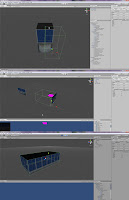
Edit: I've sort of resolved the fragmenting of prefabs, it had to do with my invoking of particular functions. I will be working on the functionality of the level builder.

This one is a little old but it does show that I've resolved a strange problem with the math that determined where a collider positioned itself and when you resized buildings.
For funs:
Minecraft - Unity Style. Also has a playable demo.
For those interested, the code looks a little like this:
//
OnScenGUI is how the Editor handles events in the scene windowfunction OnSceneGUI() {
// Handles are like Gizmos
// Draw cube at 0,0,0 when level builder is on
Handles.color = Color.red;
Handles.CubeCap(0, Vector3.zero, Quaternion.identity, 0.5);
if(editMode) {
if(Event.current.type == EventType.MouseDown) {
if(Event.current.button == 0) {
var ray = HandleUtility.GUIPointToWorldRay(Event.current.mousePosition);
var dist : float;
// Cast a ray on a "fake" plane (The Plane class in Unity is a "Representation of planes")
// If ray hits the plane (grid stand in), use the current mouse position to instantiate our prefab
if(grid.Raycast(ray, dist)) {
var pos : Vector3 = ray.origin + ray.direction.normalized * dist * 0.5;
Debug.Log("Placed fab at: " + pos);
// Using EditorUtility.InstantiatePrefab does stop me from creating clones of my prefab
// I could still use Instantiate(gameObject, pos, Quaternion.identity) here as well
var currentPiece : GameObject = EditorUtility.InstantiatePrefab(target.currentFab);
// Seems like the line below is causing some problems
currentPiece.transform.position = pos;
}//END grid Raycast
}//END Mouse Left Click
}
// Prevent deselection of object while in Edit Mode
Selection.activeGameObject = target.transform.gameObject;
}//END In Edit Mode
}//END OnSceneGUI
Failure is listed down below, I'm getting worried about how long this is all taking so any suggestions are most welcome.

Edit: I've sort of resolved the fragmenting of prefabs, it had to do with my invoking of particular functions. I will be working on the functionality of the level builder.

This one is a little old but it does show that I've resolved a strange problem with the math that determined where a collider positioned itself and when you resized buildings.

For funs:
Minecraft - Unity Style. Also has a playable demo.
Tuesday, May 10, 2011
Wreckless Conduct: Streets of Hell
With about 4 weeks to go, I decide to start scripting things that will help with level building. Yes, I have under-estimated the enormity of this task. Here's a look at what I've been working on.
Building scripts for prefabs:

Material randomiser:

To Do:
- City layout
- Roads
- Buildings
- Props
Building scripts for prefabs:

Material randomiser:

To Do:
- City layout
- Roads
- Buildings
- Props
Thursday, April 28, 2011


Tuesday, April 26, 2011
Link: Unity Things
Some stuff for Unity that looks pretty interesting and I may be writing an assignment about some of these..
Maya + Unity Grid: A MEL script and some interesting things about scale between Maya and Unity.
Level Builder: This thing's 141MB so it will eat your bandwith. It looks pretty interesting, I will be testing it out later. Edit: Okay, you get a demo version of the level builder that works in a strange way. It's interesting to play around with but for some bizzare reason is configured to work with joysticks.
UniLOD: A LOD system for Unity.
UnitySteer: Because I can't afford the Asset Store.
Maya + Unity Grid: A MEL script and some interesting things about scale between Maya and Unity.
Level Builder: This thing's 141MB so it will eat your bandwith. It looks pretty interesting, I will be testing it out later. Edit: Okay, you get a demo version of the level builder that works in a strange way. It's interesting to play around with but for some bizzare reason is configured to work with joysticks.
UniLOD: A LOD system for Unity.
UnitySteer: Because I can't afford the Asset Store.
Monday, April 25, 2011
Wreckless Conduct: Prop Export Tool
My Export Tool has hit its final stage of development. I doubt I'm going to do more to it but suggestions are always welcome.
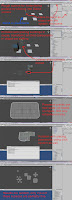
Here's a pictorial outline of how it works:
Important: This works best if you point the tool to a Custom Assets/Assets folder in your Unity project that should have folders for Models and Textures. I may look into adjusting it so you can just choose a project folder but that will depend on time constraints.

If you can see the tool, then you may notice the text boxes for Model and Texture Folders. They are default names but you can edit them as long as you remember to have a "/" at the front. Annoying but it's just the way I've set to code to deal with empty text boxes.


I've got a slight problem with importing to Unity and the generation of materials. If you look at the pictures below, it will generate a material from the imported texture file and import the Maya default lambert1. It's very likely I will need to play with Unity's Editor classes but we'll see how I go.


Fixed:
- Problems with exporting with/without the Collision node
- Hacky fixes for re-exporting and multiple Collision Nodes (you can have mulitiple Collision nodes but it ignore those nodes upon export)
- Collision volume names, it will now stop appending additional tags to the volumes' name
Added:
- Naming of multiple volumes, you can add the same tag to whatever's under your selection
- Folder Names as mentioned before
- Remove collision volumes from the Collision node
Problems:
- You will need to assign another material to your object, Maya has a problem with renaming lambert1.
- It will still build an Export Node even if you haven't selected a mesh or when you exit out of the save dialog box. I may need to find a way to halt the procedure.
To Add:
- File Path refinement
- Extra pivot point options (maybe, I don't really need them but someone else might)
Here's a pictorial outline of how it works:
Important: This works best if you point the tool to a Custom Assets/Assets folder in your Unity project that should have folders for Models and Textures. I may look into adjusting it so you can just choose a project folder but that will depend on time constraints.

If you can see the tool, then you may notice the text boxes for Model and Texture Folders. They are default names but you can edit them as long as you remember to have a "/" at the front. Annoying but it's just the way I've set to code to deal with empty text boxes.


I've got a slight problem with importing to Unity and the generation of materials. If you look at the pictures below, it will generate a material from the imported texture file and import the Maya default lambert1. It's very likely I will need to play with Unity's Editor classes but we'll see how I go.


Fixed:
- Problems with exporting with/without the Collision node
- Hacky fixes for re-exporting and multiple Collision Nodes (you can have mulitiple Collision nodes but it ignore those nodes upon export)
- Collision volume names, it will now stop appending additional tags to the volumes' name
Added:
- Naming of multiple volumes, you can add the same tag to whatever's under your selection
- Folder Names as mentioned before
- Remove collision volumes from the Collision node
Problems:
- You will need to assign another material to your object, Maya has a problem with renaming lambert1.
- It will still build an Export Node even if you haven't selected a mesh or when you exit out of the save dialog box. I may need to find a way to halt the procedure.
To Add:
- File Path refinement
- Extra pivot point options (maybe, I don't really need them but someone else might)
Thursday, April 21, 2011
Wreckless Conduct: Dem Dry Bones
The Wreckless Art Team's had some trouble with importing our animated rigs into the build. Tuesday night, Brie found the solution to our problem.

The solution involves an attribute found on joints known as Scale Compensation (or in Maya Segment Scale Compensate) which isn't supported by Unity. You just uncheck a checkbox found in the Attribute Editor and the rig will import correctly.
To save Brie the hassle of doing this 234 times (that's 39 bones x 6 models), I wrote a MEL script that does it for her. FUU-YEAH, Hadōken's a little hard to do but fixing pipeline issues like this is pretty good.

The solution involves an attribute found on joints known as Scale Compensation (or in Maya Segment Scale Compensate) which isn't supported by Unity. You just uncheck a checkbox found in the Attribute Editor and the rig will import correctly.
To save Brie the hassle of doing this 234 times (that's 39 bones x 6 models), I wrote a MEL script that does it for her. FUU-YEAH, Hadōken's a little hard to do but fixing pipeline issues like this is pretty good.
Subscribe to:
Posts (Atom)